On this page:
Business Information
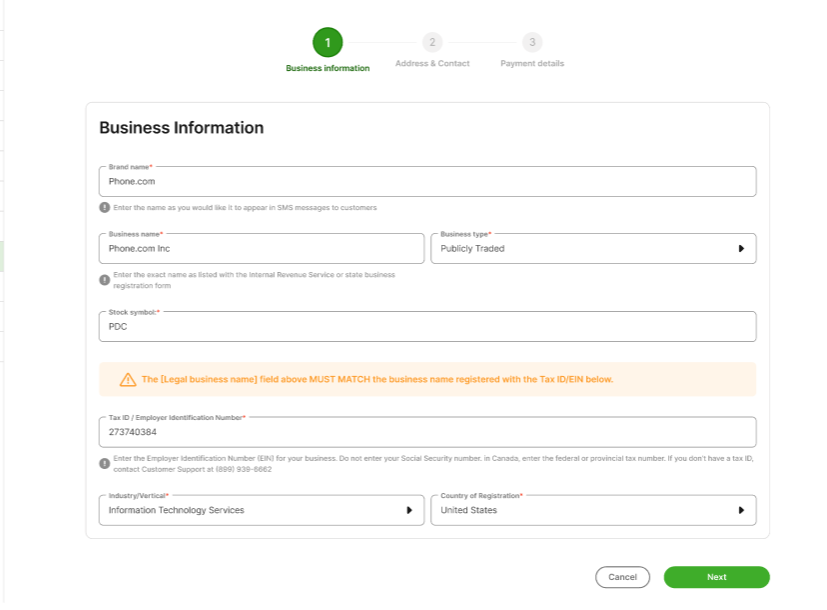
Brand name: This will be the name for your Brand's registration. You can use your legal business name or a DBA name.
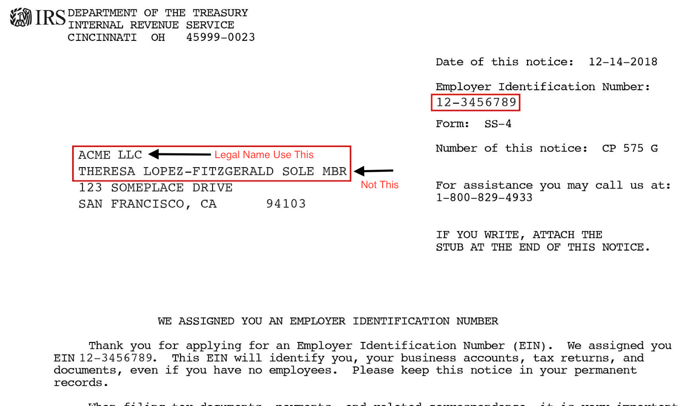
Legal business name: This is the legal name that must match exactly what is on your EIN document from the IRS or your Canadian Business Number document.
You must type the name exactly as it appears on these documents, including punctuation, or it will be rejected by the third party entity. Do not use your DBA name in this field. The legal name may be different from what appears on your tax return.
Business type: Please select your business type.
Stock Symbol: If you are publicly traded, please enter your ticker symbol. If you are not publicly traded, you can skip this field.
Federal business ID (EIN for US, Business Number for Canada): This is either your US federal Employer Identification Number (9 digits) or Taxpayer Identification Number (TIN) for your business. Customers in Canada can enter their federal or provincial tax number.
Do not use a Social Security Number or other business ID issued by a state or province.
If you recently applied for an EIN, it can take up to two weeks before it can be validated by The Campaign Registry (TCR).
Vertical: Select the industry vertical that best matches your business type. It should align with what you submitted to the IRS or Canadian government when you received your EIN or Canadian Business Number.
Country of registration: Only customers located in the United States or Canada are eligible for registration.
Business Address & Contact Information
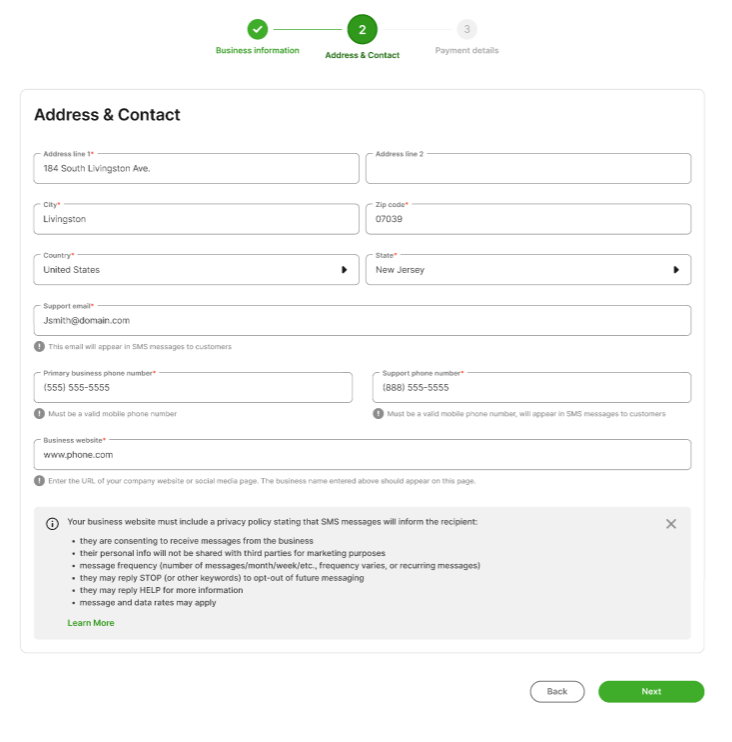
Business address: Use the business address on file with the IRS or the Canadian government.
Support email: Enter the email that your customers can use to get support. It must be relevant to the brand. It must reflect the company, personal email addresses will not be approved.
Primary business phone: This should be a verifiable business phone number.
Support phone number: This should be the phone number your customers can call for support. It may be the same as the primary business phone.
Business Website: Enter the full URL for your business.
If you have a business website, Facebook, or LinkedIn profile, it must have a sufficient Privacy Policy to avoid registration rejection. Including:
- A full Privacy Policy with a section for mobile communication that states the following: "No mobile information will be shared with third parties or affiliates for marketing or promotional purposes. All the above categories exclude text messaging originator opt-in data and consent; this information will not be shared with any third parties."
- A Terms and Conditions page that includes Messaging Terms and Conditions. For example, "You agree to receive informational messages (appointment reminders, account notifications, etc.) from [Company Name]. Message frequency varies. Message and data rates may apply. For help, reply HELP or email us at [email address]. You can opt out at any time by replying STOP."
If you do not have a business website, you can use a social media page, such as Facebook or LinkedIn, that meets these requirements.
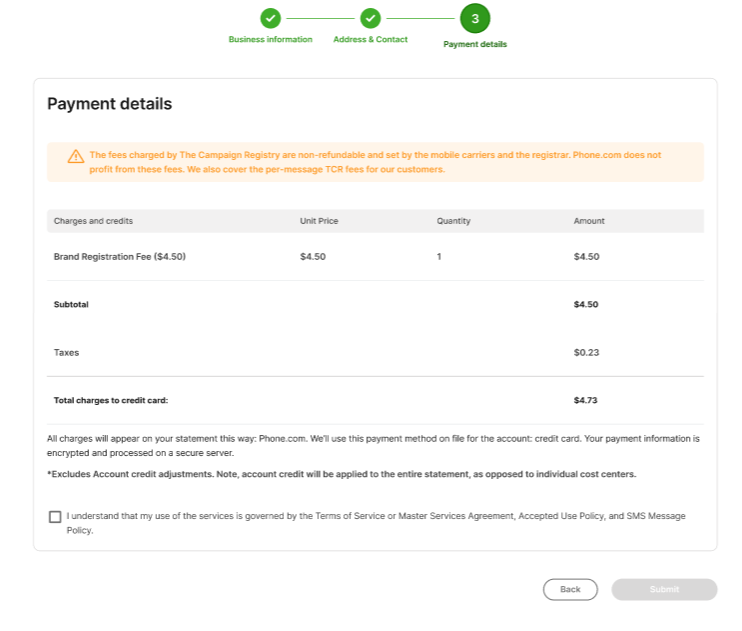
Business Payment Confirmation
Once you have completed the business information, you can review the registration fee and accept the terms. Then click “Submit.”
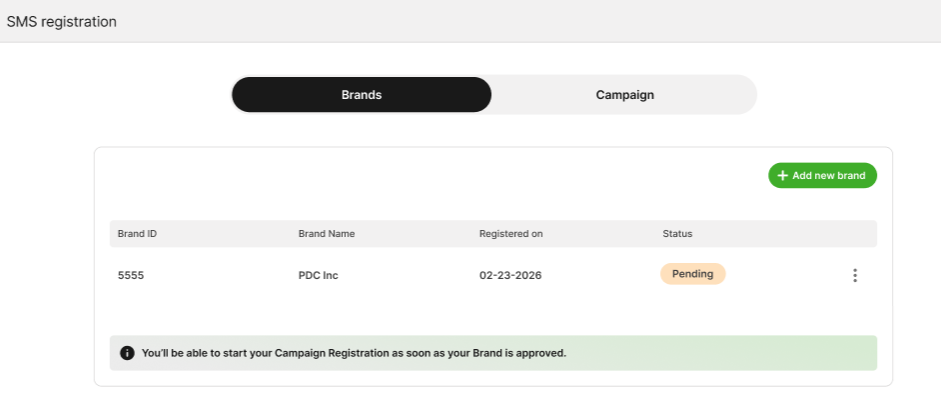
Brand Status Management
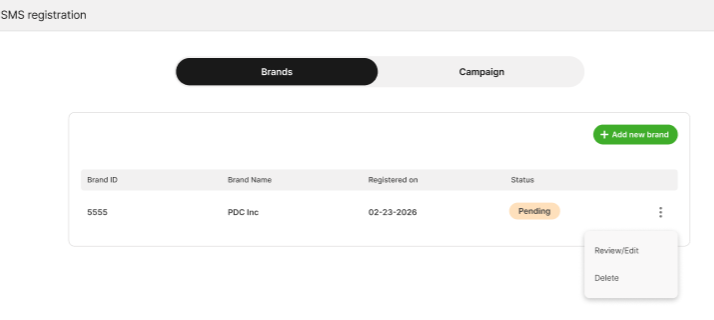
After submitting your Brand, the status will appear as Pending during review. Status updates are expected to be completed within approximately 30 minutes.
Users will not be able to edit Brands while they are in a “Pending” status but they will be able to review it.
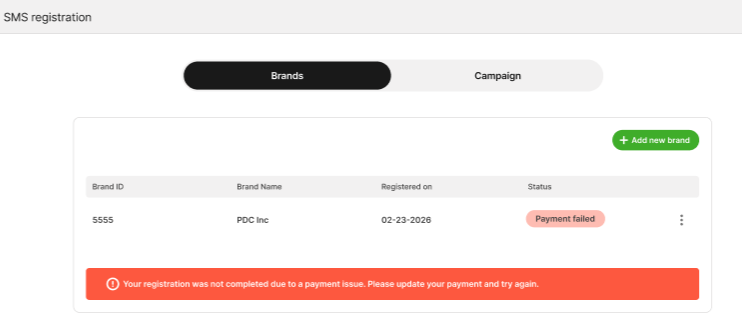
Payment Failed
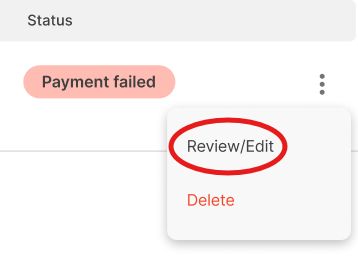
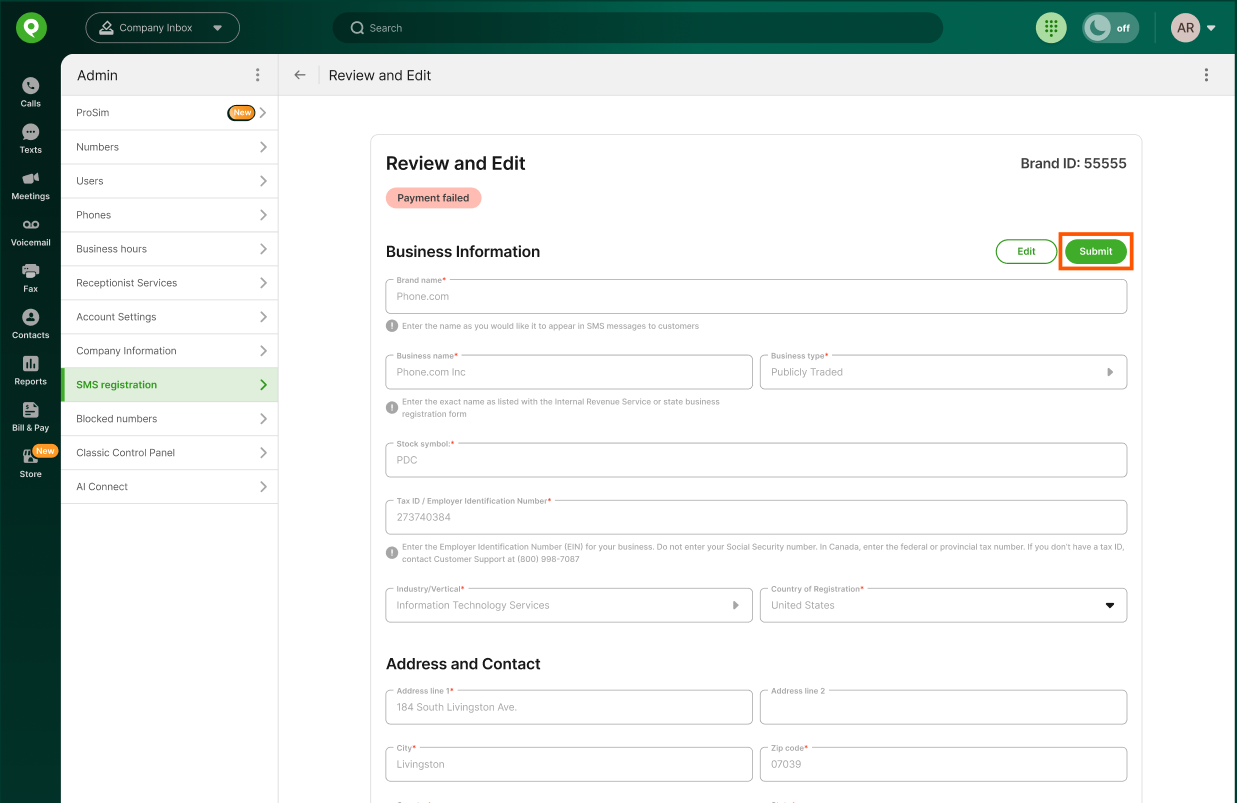
If your Brand Payment Failed, update your method of payment and then register again.
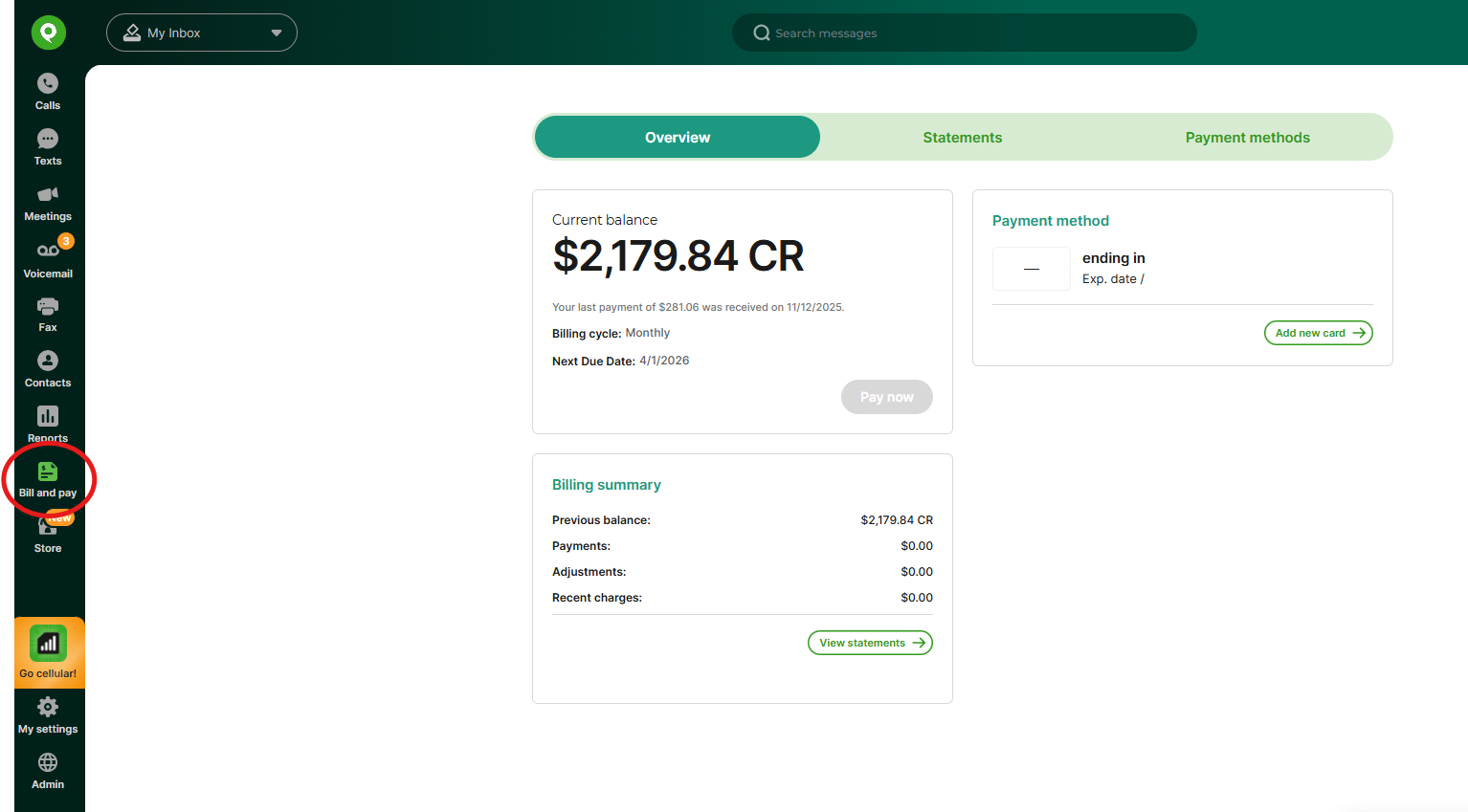
Navigate to Bill & Pay, update your credit information, and submit your payment.
Return to the SMS registration, select Review/Edit page and submit your Brand registration again.
Rejected Status
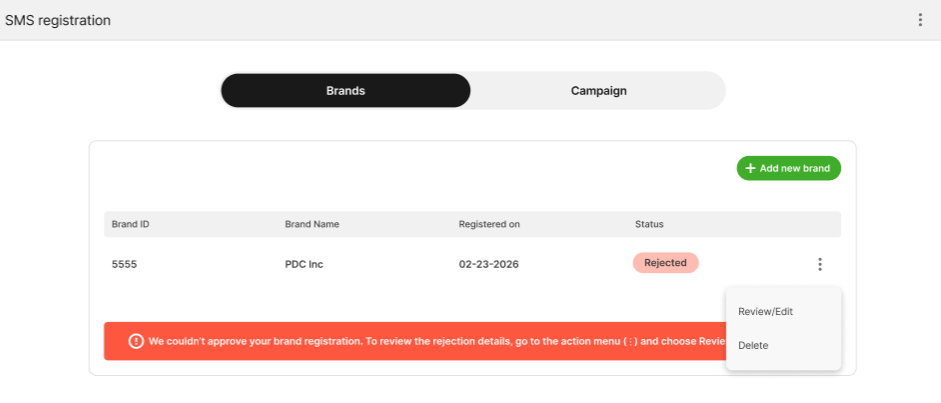
If your Brand’s status is "Rejected", the third party entity has rejected your submission. This is almost always because the legal name entered does not match the IRS EIN or Canada Business number exactly. You will need to find the correct legal name and register again.
If your Brand is rejected, you can edit and resubmit. Navigate to the overflow menu on the right of your brand. Select “Review/Edit.”
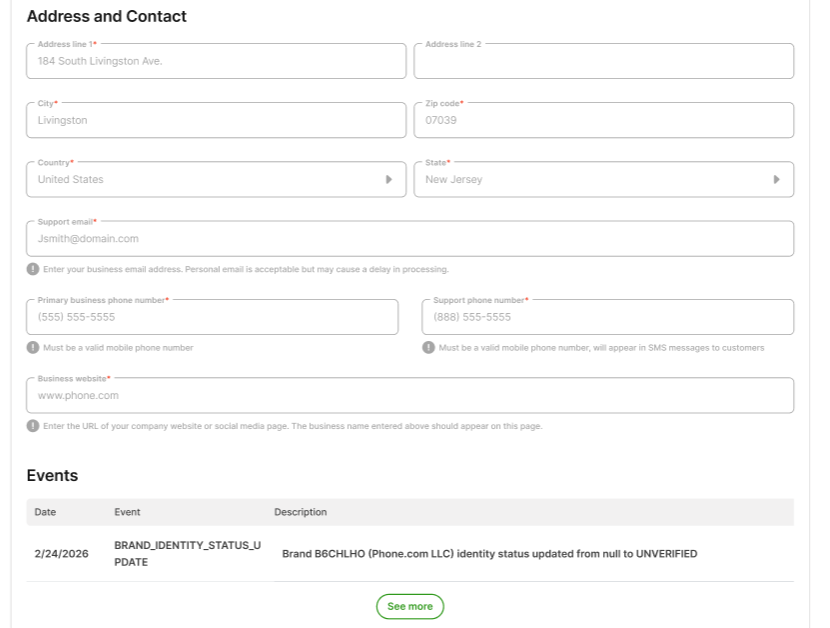
You can find the reason for your rejection at the bottom of the review page under “Events.”
After selecting “Review/Edit,” click the “Edit” button on the top-right corner. The “Edit” button will be enabled only if the Brand has been rejected.
You can update your submission and resubmit your request after confirming all details are accurate and payment is complete.
Approved Status
If your Brand status is "Approved," you can move on to Campaign registration. Campaign registration is necessary even for conversational text messaging. You will not be able to register for a campaign until your Brand is approved.
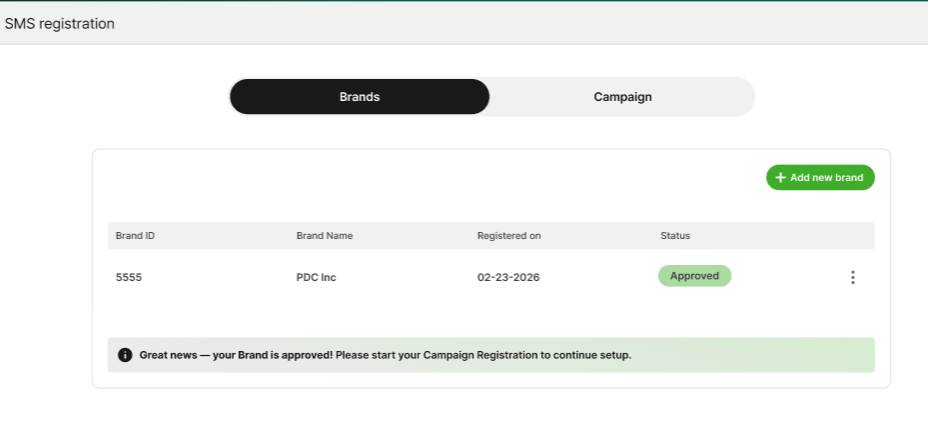
Delete a Brand
To delete your Brand simply click on the overflow menu on the right side of your campaign and select “Delete.”
Note: Brands that are associated with a Campaign cannot be deleted.